 |
 |
 |
|
 |


|
|||||||


|  |
| |||||||||||||||||||||||||||||||||||||||||||||||||||||||||||||||||||||||||||||||||||||||||||||||||||||||||||||||||||




 |
|
 01-07-2011, 09:41 PM
|
|||
|
The Undying
Forum posts: 104
File comments: 94
Uploads: 6
|
Glad you fixed it, I saw you message and was starting to scratch my head as I had this issue and thought it was fixed
 Thanks for taking the time to update your post you avoided me a headache for sure! |
||


|


|

|
01-05-2011, 06:45 AM
|
|||
|
The Wary
Forum posts: 0
File comments: 10
Uploads: 0
|
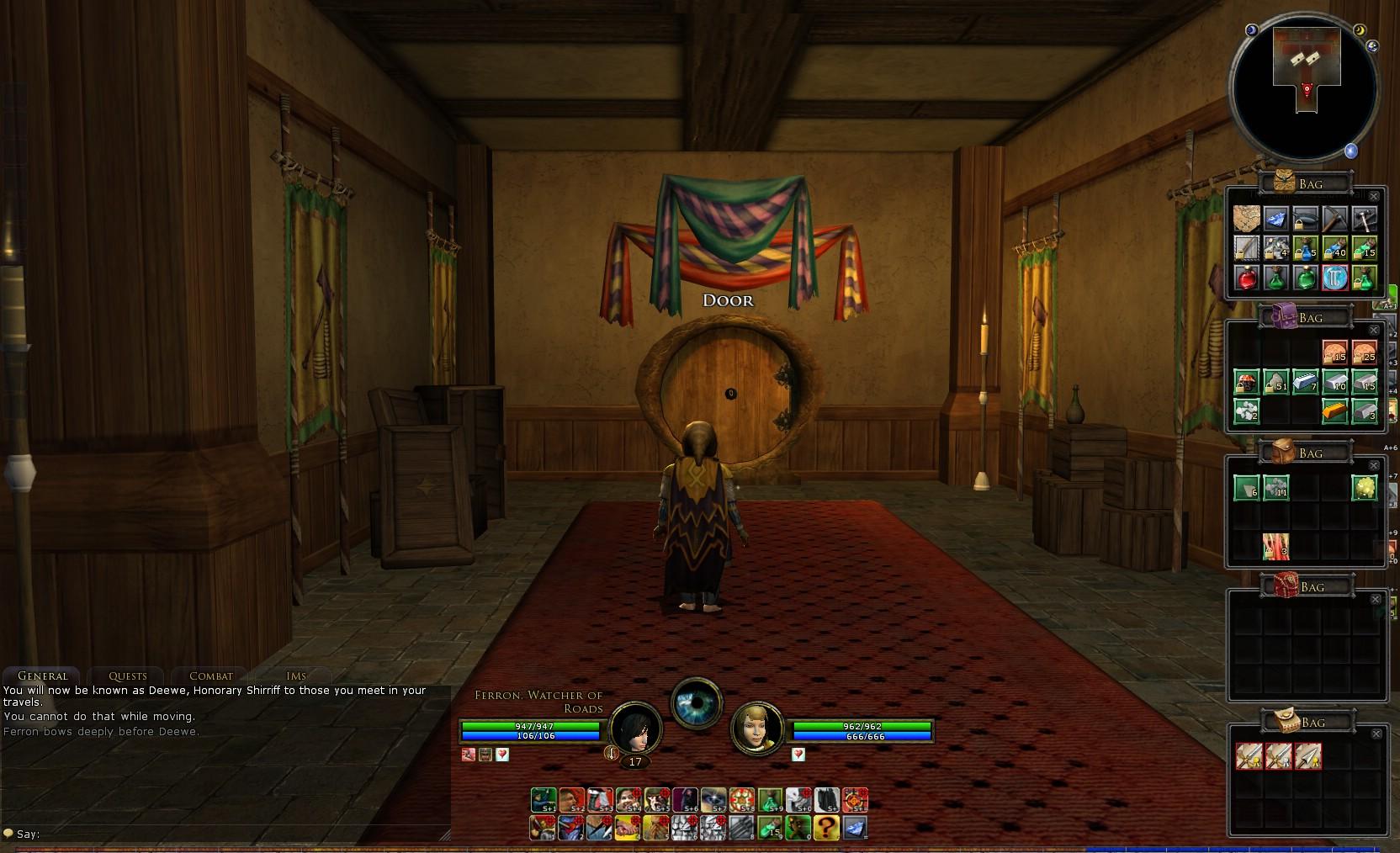
I don't know how I missed this one when I was looking, but I did notice it with the January 2011 update. I will give this one a try - it looks clean and simple; just what I want!
TY EDITED Please ignore the original text that was here! I committed an ID-10-T error. Last edited by Trasd : 01-07-2011 at 02:12 PM. |
||
|
|
|
|
12-01-2010, 07:38 PM
|
||||
|
The Undying
Forum posts: 104
File comments: 94
Uploads: 6
|
Re: November 2010 Update
Quote:
Sorry I don't have time to work on the UI atm |
|||
|
|
|
|
11-29-2010, 11:01 PM
|
|||
|
The Wary
Forum posts: 1
File comments: 22
Uploads: 0
|
November 2010 Update
Anyone know how to revert to the default crafting panel and quest log while retaining the rest of the UI? The craft panel and quest log were changed quite a bit with today's update and the skin is "broken" I guess you could say at the moment. DaimonUI has instructions for reverting that particular UI back to the default quest log and crafting panels, which seems like a good idea, but those instructions don't translate.
EDIT: Actually, never mind. I just deleted the entire sections in my SkinDefinition.xml file that pertained to the quest log and the craft panel, then reloaded the game and all was well. I can't believe it was that easy.  Last edited by Ignotus : 11-29-2010 at 11:11 PM. |
||
|
|
|
|
11-10-2010, 10:05 AM
|
|||
|
The Wary
Forum posts: 2
File comments: 3
Uploads: 0
|
Has anyone tried Yessh for monsterplay, I just reached rank 3 on a warg and it looks like the vitals was replaced with vanilla graphics. Is it possible to add something on the xml to revert it back to my yessh?
Thanks Turbine cant make uis  |
||
|
|
|
|
10-17-2010, 03:26 AM
|
|||
|
The Wary
Forum posts: 1
File comments: 22
Uploads: 0
|
Good to see Deewe back and updating the skin and helping people out. I figured this nice skin was going to be abandoned. Keep up the good work!
|
||
|
|
|
|
10-03-2010, 05:36 PM
|
||||
|
The Undying
Forum posts: 104
File comments: 94
Uploads: 6
|
Quote:
|
|||
|
|
|
|
10-03-2010, 01:05 PM
|
|||
|
The Wary
Forum posts: 0
File comments: 5
Uploads: 0
|
Ok I get that I'm normally blind but I have hit ctrl+\ hundreds of times and have still yet to see the box surrounding those bars. UI
|
||
|
|
|
|
10-02-2010, 07:11 PM
|
||||
|
The Undying
Forum posts: 104
File comments: 94
Uploads: 6
|
Quote:
"ctrl"+"\" in game will let you move this. I thought you knew it and wanted to change the position of the main bar that's unmoveable in game contrary to the other ones. |
|||
|
|
|
|
10-02-2010, 05:42 PM
|
|||
|
The Wary
Forum posts: 0
File comments: 5
Uploads: 0
|
You can edit the X position in the below line try with something like 770 and let me know.
<Element ID="Toolbar_Quickslot" X="750" Y="1150" Width="420" Height="35" /> <!-- quickslot location. X values 0-1500 (Center=750 for 1920x1200) / Y values 0-1150 --> Doing that just offsets the main bar to be aligned with the extra bars, which is not even close to center. I edited it (the main bar) to be center and these are the values I used in the SkinDefinition file to center the main bar dead center according to Align. <Element ID="Toolbar_Quickslot" X="748" Y="1030" Width="420" Height="35" /> <!-- quickslot location. X values 0-1500 (Center=750 for 1920x1080) / Y values 0-1030 --> And just so you can see what I see. UI The yellow box is the extra bars I'm trying to move. According to Align it looks like they need moved left about 20-22 pixels and down about the same. I'm still tooling around with the values in the SkinDefinition file trying to move them myself. |
||
|
|
|
|
10-02-2010, 09:39 AM
|
||||
|
The Undying
Forum posts: 104
File comments: 94
Uploads: 6
|
Quote:
<Element ID="Toolbar_Quickslot" X="750" Y="1150" Width="420" Height="35" /> <!-- quickslot location. X values 0-1500 (Center=750 for 1920x1200) / Y values 0-1150 --> |
|||
|
|
|
|
10-02-2010, 09:35 AM
|
||||
|
The Undying
Forum posts: 104
File comments: 94
Uploads: 6
|
Re: Vitals
Quote:
Documents\The Lord of the Rings Online\UI\Skins\Yessh folder. Look for the vitals entries and edit the files names accordingly, the player vital is the first entry, the others are for the targeted creatures Code:
<!--  Vitals -->
    <Mapping ArtAssetID="player_vitals_backdrop" FileName="..\Graphics\vitals\player_vitals_backdrop.tga" />
    <Mapping ArtAssetID="level_background" FileName="..\Graphics\vitals\level_background.tga" />
    <Mapping ArtAssetID="level_background_red" FileName="..\Graphics\vitals\level_background_red.tga" />
    <Mapping ArtAssetID="level_background_rare" FileName="..\Graphics\vitals\level_background_rare.tga"></Mapping>
    <Mapping ArtAssetID="level_lvlNotRevealed" FileName="..\Graphics\vitals\level_lvlNotRevealed.tga"></Mapping>

    <Mapping ArtAssetID="opponent_vitals_backdrop" FileName="..\Graphics\vitals\opponent_vitals_backdrop.tga" />
    <Mapping ArtAssetID="opponent_vitals_backdrop_elite" FileName="..\Graphics\vitals\opponent_vitals_backdrop_elite.tga" />
    <Mapping ArtAssetID="opponent_vitals_backdrop_elite_mp" FileName="..\Graphics\vitals\opponent_vitals_backdrop_elite_mp.tga" />
    <Mapping ArtAssetID="opponent_vitals_backdrop_elitemaster" FileName="..\Graphics\vitals\opponent_vitals_backdrop_elitemaster.tga" />
    <Mapping ArtAssetID="opponent_vitals_backdrop_elitemaster_mp" FileName="..\Graphics\vitals\opponent_vitals_backdrop_elitemaster_mp.tga" />
    <Mapping ArtAssetID="opponent_vitals_backdrop_signature" FileName="..\Graphics\vitals\opponent_vitals_backdrop_signature.tga" />
    <Mapping ArtAssetID="opponent_vitals_backdrop_signature_mp" FileName="..\Graphics\vitals\opponent_vitals_backdrop_signature_mp.tga" />

    <Mapping ArtAssetID="player_vitals_backdrop_mini" FileName="..\Graphics\vitals\player_vitals_backdrop_mini.tga" />
    <Mapping ArtAssetID="player_vitals_backdrop_mini_level" FileName="..\Graphics\vitals\player_vitals_backdrop_mini_level.tga" />

    <Mapping ArtAssetID="swarm_vitals" FileName="..\Graphics\vitals\swarm_vitals_bars.tga" />
    <Mapping ArtAssetID="swarm_vitals_mp" FileName="..\Graphics\vitals\swarm_vitals_mp.tga" />

    <Mapping ArtAssetID="opponent_vitals_backdrop_avenger_good" FileName="..\Graphics\vitals\opponent_vitals_backdrop_avenger_good.tga" />
    <Mapping ArtAssetID="opponent_vitals_backdrop_avenger_good_mp" FileName="..\Graphics\vitals\opponent_vitals_backdrop_avenger_good_mp.tga" />
    <Mapping ArtAssetID="opponent_vitals_backdrop_defender_good" FileName="..\Graphics\vitals\opponent_vitals_backdrop_defender_good.tga" />
    <Mapping ArtAssetID="opponent_vitals_backdrop_defender_good_mp" FileName="..\Graphics\vitals\opponent_vitals_backdrop_defender_good_mp.tga" />
    <Mapping ArtAssetID="opponent_vitals_backdrop_hero_good" FileName="..\Graphics\vitals\opponent_vitals_backdrop_hero_good.tga" />
    <Mapping ArtAssetID="opponent_vitals_backdrop_master_defender_good" FileName="..\Graphics\vitals\opponent_vitals_backdrop_master_defender_good.tga" />
    <Mapping ArtAssetID="opponent_vitals_backdrop_master_defender_good_mp" FileName="..\Graphics\vitals\opponent_vitals_backdrop_master_defender_good_mp.tga" />
    <Mapping ArtAssetID="opponent_vitals_backdrop_signature_good" FileName="..\Graphics\vitals\opponent_vitals_backdrop_signature_good.tga" />
    <Mapping ArtAssetID="opponent_vitals_backdrop_signature_good_mp" FileName="..\Graphics\vitals\opponent_vitals_backdrop_signature_good_mp.tga" />
|
|||
|
|
|
|
10-01-2010, 09:55 PM
|
|||
|
The Wary
Forum posts: 0
File comments: 1
Uploads: 0
|
Vitals
Sorry, I am another LOTRO interface newb. I didn't understand your post about the vitals. How do we change which one we have if there aren't options?
|
||
|
|
|
|
10-01-2010, 06:22 PM
|
|||
|
The Wary
Forum posts: 0
File comments: 5
Uploads: 0
|
Ok here is the UI with a line being drawn at (according to MsPaint) in the exact middle. The eye and main bar are pretty close so I'm not really stressed about those but the quickslot bars being high and offset right bugs the hell out of me. And that SS was taken with the Full Screen Resolution as 1904x1080, with all the UI scales at 1.00.
|
||
|
|
|
|


All times are GMT -5. The time now is 04:40 AM.
 |
© MMOUI
vBulletin® - Copyright ©2000 - 2024, Jelsoft Enterprises Ltd. |
 |
